启动Docker容器,并开放5900端口。
1 docker run -itd --name vnc -p 5900:5900 debian
进入容器执行后续命令。
1 docker exec -it debian /bin/bash
容器内,首先更换Debian Tsinghua源,使用http代替https,需要注意更换Debian版本。
1
2
3
4
echo "deb http://mirrors.tuna.tsinghua.edu.cn/debian/ bullseye main contrib non-free deb http://mirrors.tuna.tsinghua.edu.cn/debian/ bullseye-updates main contrib non-free deb http://mirrors.tuna.tsinghua.edu.cn/debian/ bullseye-backports main contrib non-free deb http://mirrors.tuna.tsinghua.edu.cn/debian-security bullseye-security main contrib non-free" > /etc/apt/sources.list
1 sudo sed -i 's/deb.debian.org/mirrors.ustc.edu.cn/g' /etc/apt/sources.list.d/debian.sources
1
2
3
4
5
6
7
8
9
10
11
Types: deb URIs: http://mirrors.ustc.edu.cn/debian Suites: bookworm bookworm-updates Components: main Signed-By: /usr/share/keyrings/debian-archive-keyring.gpg Types: deb URIs: http://mirrors.ustc.edu.cn/debian-security Suites: bookworm-security Components: main Signed-By: /usr/share/keyrings/debian-archive-keyring.gpg
[中科大 debian12 替换源](https://mirrors.ustc.edu.cn/help/debian.html)
安装Vim、桌面和VNC软件等。
1
2
apt update -y apt install vim xfce4 xfce4-terminal tightvncserver tightvnc-java dbus-x11 -y
生成配置文件,并修改使用xfce4桌面。
1
2
3
4
5
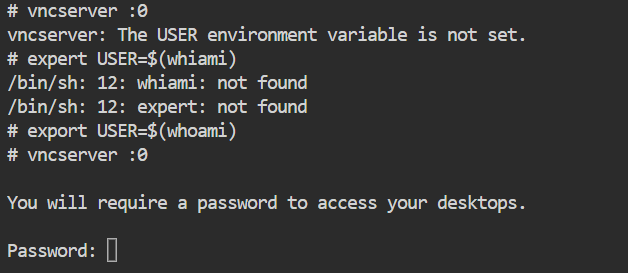
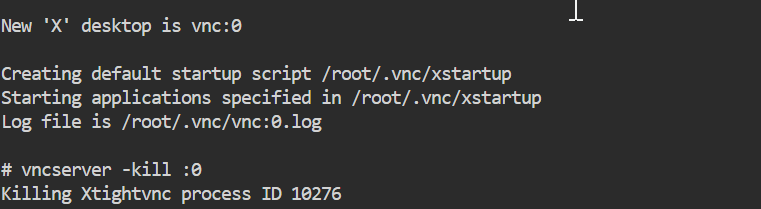
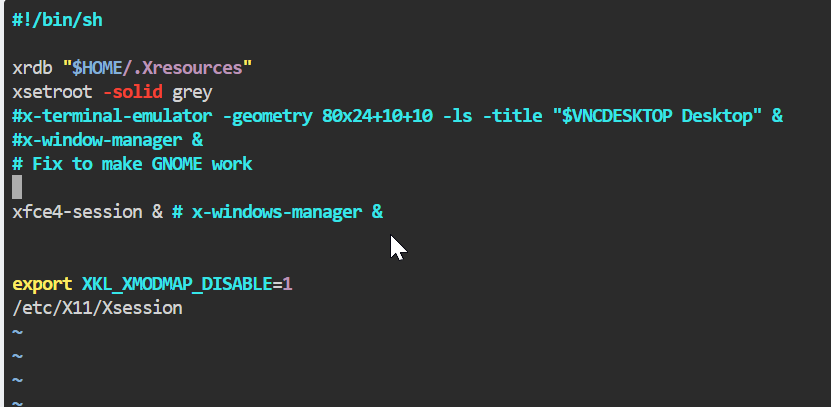
vncserver :0 vncserver -kill :0 rm /tmp/.X* -r sed -i 's$x-window-manager$xfce4-session$' ~/.vnc/xstartup vncserver :0
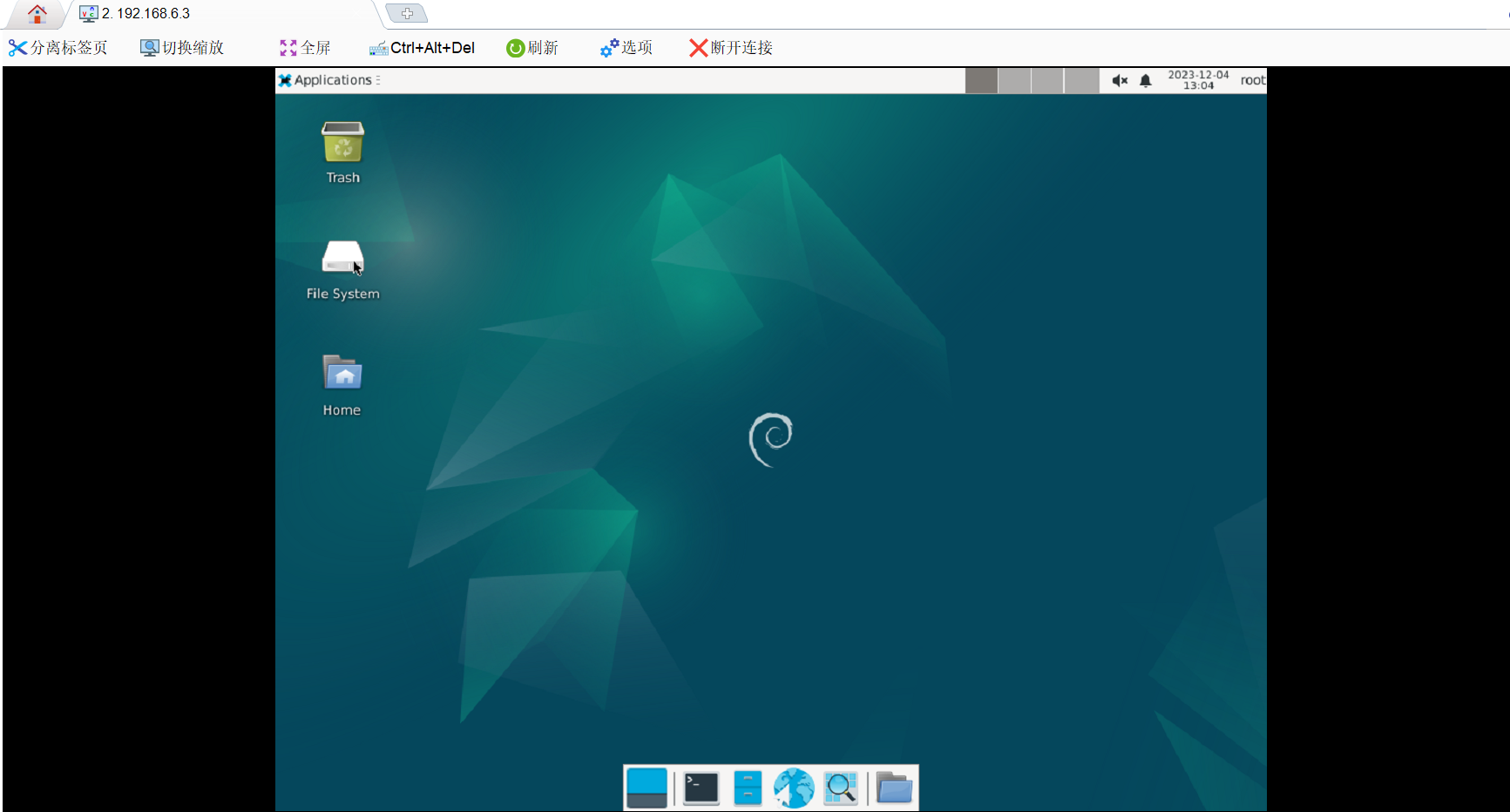
使用VNC软件连接。
Debian 桌面
安装Firefox、中文语言和输入法。
1 apt install firefox-esr xfonts-intl-chinese xfonts-wqy scim scim-pinyin -y
Ubuntu配置VNC远程桌面 Ubuntu 22.04已经内置了远程连接功能,所以本次以Ubuntu 18.04 Desktop进行配置VNC远程桌面访问。
VNC分为Server端和View端,原理就是客户端(view)访问服务端(server),市面上有很多VNC产品,有免费和收费之分,
View端部署在Windows上,我使用的是TightVNC,因为它是开源且对个人和商用均免费的,[官方下载地址 ]。
Server端部署在Ubuntu上,这里会演示3种不同的方案(任选一种即可 ),分别是:vnc4server、tigervnc-standalone-server、tightvncserver.
1.vnc4server
1.1 安装软件包
1
2
$ sudo apt install vnc4server $ sudo apt install gnome-panel
1.2 设置密码
1
2
3
4
5
# 密码最大长度为8个字符. $ vncpasswd Password: Verify: Password too long - only the first 8 characters will be used
1.3 编写启动文件
执行完第2步,会在用户目录生成.vnc/passwd,我们进入并创建和编辑如下文件:
1
2
3
$ cd ~/.vnc/ $ touch xstartup $ chmod a+x xstartup
添加如下内容:
1
2
3
4
5
6
7
8
9
10
11
12
13
14
15
1 #!/bin/sh 2 3 unset SESSION_MANAGER 4 unset DBUS_SESSION_BUS_ADDRESS 5 export XKL_XMODMAP_DISABLE=1 6 export XDG_CURRENT_DESKTOP="GNOME-Flashback:GNOME" 7 export XDG_MENU_PREFIX="gnome-flashback-" 8 9 [ -x /etc/vnc/xstartup ] && exec /etc/vnc/xstartup 10 [ -r $HOME/.Xresources ] && xrdb $HOME/.Xresources 11 12 vncconfig -iconic & 13 gnome-terminal & 14 nautilus & 15 gnome-session --session=gnome-flashback-metacity --disable-acceleration-check &
1.4 启动与测试
Server端:
1
2
3
4
5
6
7
8
9
10
# 以下3种方式,任选其一 # 简单的启动方式: $ vncserver # 增加一些条件的启动方式(这里是分辨率): $ vncserver -geometry 1920x1080 # 增加一些条件的启动方式(这里是端口号1,即5901,以及配置了分辨率): $ vncserver :1 -geometry 1920x1080
运行上述命令后,会出现一些log信息:
1
2
3
4
New 'testobj:1 (abc)' desktop is testobj:1 Starting applications specified in /home/abc/.vnc/xstartup Log file is /home/abc/.vnc/testobj:1.log
vnc的默认端口是5900,vncserver第一个桌面使用5901,第二个桌面使用5902,以此类推,上述log信息显示的是1,所以我们使用5901端口.
View端:
Windows上打开TightVNC,输入IP:Port,如:
回车后,输入我们在server端设置的密码,顺利的话,就可以看到和控制Ubuntu远程桌面了,鼠标右键菜单可以打开Terminal。
如果端口我们用不到了,可以关掉:
2.tigervnc-standalone-server
2.1 安装软件包
1
2
$ sudo apt install tigervnc-standalone-server $ sudo apt install gnome-panel
2.2 设置密码
1
2
3
4
5
$ vncpasswd Password: Verify: Would you like to enter a view-only password (y/n)? n A view-only password is not used
注意 :选择No(Would you like to enter a view-only password (y/n)?).
2.3 编写启动文件
执行完第2步,会在用户目录生成.vnc/passwd,我们进入并创建和编辑文件:
1
2
3
$ cd ~/.vnc/ $ touch xstartup $ chmod a+x xstartup
添加如下内容:
1
2
3
4
5
6
7
8
9
10
11
12
13
14
15
1 #!/bin/sh 2 3 unset SESSION_MANAGER 4 unset DBUS_SESSION_BUS_ADDRESS 5 export XKL_XMODMAP_DISABLE=1 6 export XDG_CURRENT_DESKTOP="GNOME-Flashback:GNOME" 7 export XDG_MENU_PREFIX="gnome-flashback-" 8 9 [ -x /etc/vnc/xstartup ] && exec /etc/vnc/xstartup 10 [ -r $HOME/.Xresources ] && xrdb $HOME/.Xresources 11 12 vncconfig -iconic & 13 gnome-terminal & 14 nautilus & 15 dbus-launch --exit-with-session gnome-session &
2.4 启动与测试
Server端:
1
2
# 不加-localhost no,只会监听127.0.0.1,外部无法访问. $ vncserver -localhost no
上述命令,输入log如下:
1
2
3
4
5
6
New 'testobj:1 (abc)' desktop at :1 on machine testobj Starting applications specified in /home/abc/.vnc/xstartup Log file is /home/abc/.vnc/testobj:1.log Use xtigervncviewer -SecurityTypes VncAuth,TLSVnc -passwd /home/abc/.vnc/passwd testobj:1 to connect to the VNC server.
vnc的默认端口是5900,vncserver第一个桌面使用5901,第二个桌面使用5902,以此类推,上述log信息显示的是1,所以我们使用5901端口.
View端:
Windows上打开TightVNC,输入IP:Port,如:
回车后,输入我们在server端设置的密码,顺利的话,就可以看到和控制Ubuntu远程桌面了,鼠标右键菜单可以打开Terminal。
3.tightvncserver
3.1 安装软件包
1
2
$ sudo apt install tightvncserver $ sudo apt install gnome-panel
3.2 设置密码
1
2
3
4
5
6
7
8
# 设置密码,8个字符. $ vncpasswd Using password file /home/abc/.vnc/passwd VNC directory /home/abc/.vnc does not exist, creating. Password: Warning: password truncated to the length of 8. Verify: Would you like to enter a view-only password (y/n)? n
3.3 编写启动文件
执行完第2步,会在用户目录生成.vnc/passwd.
1
2
3
$ cd ~/.vnc/ $ touch xstartup $ chmod a+x xstartup
添加如下内容:
1
2
3
4
5
6
7
8
9
10
11
12
13
14
15
1 #!/bin/sh 2 3 unset SESSION_MANAGER 4 unset DBUS_SESSION_BUS_ADDRESS 5 export XKL_XMODMAP_DISABLE=1 6 export XDG_CURRENT_DESKTOP="GNOME-Flashback:GNOME" 7 export XDG_MENU_PREFIX="gnome-flashback-" 8 9 [ -x /etc/vnc/xstartup ] && exec /etc/vnc/xstartup 10 [ -r $HOME/.Xresources ] && xrdb $HOME/.Xresources 11 12 vncconfig -iconic & 13 gnome-terminal & 14 nautilus & 15 gnome-session --session=gnome-flashback-metacity --disable-acceleration-check &
3.4 启动与测试
1
2
3
4
5
简单的启动方式: $ vncserver 增加一些条件的启动方式: $ vncserver -geometry 1920x1080
上述命令,输入log如下:
1
2
3
4
New 'X' desktop is tshark:1 Starting applications specified in /home/abc/.vnc/xstartup Log file is /home/abc/.vnc/tshark:1.log
vnc的默认端口是5900,vncserver第一个桌面使用5901,第二个桌面使用5902,以此类推,上述log信息显示的是1,所以我们使用5901端口.
View端:
Windows上打开TightVNC,输入IP:Port,如:
回车后,输入我们在server端设置的密码,顺利的话,就可以看到和控制Ubuntu远程桌面了,鼠标右键菜单可以打开Terminal。
4.多用户和开机自启动
4.1 多用户
配置VNC多用户连接的方法是,先切换到指定用户
[假设有两个用户abc和def,abc已配置过第1或2或3步骤,可以正常使用VNC了,现在配置def]:
切换成功后,重新执行一遍第1或2或3中的步骤,这样就可以连接abc和def了。
4.2 开机自启动
Ubuntu 18.04有一个这个文件:
1
2
$ ls -l /lib/systemd/system/rc-local.service -rw-r--r-- 1 root root 791 Apr. 16 16:53 /lib/systemd/system/rc-local.service
它的内容如下:
1
2
3
4
5
6
7
8
9
10
11
12
1 [Unit] 2 Description=/etc/rc.local Compatibility 3 Documentation=man:systemd-rc-local-generator(8) 4 ConditionFileIsExecutable=/etc/rc.local 5 After=network.target 6 7 [Service] 8 Type=forking 9 ExecStart=/etc/rc.local start 10 TimeoutSec=0 11 RemainAfterExit=yes 12 GuessMainPID=no
如果没有这个文件,就自己创建一个,注意修改权限(644).
我们对这个文件做如下修改:
1
2
3
4
5
6
7
8
9
10
11
12
13
14
15
16
1 --- a/lib/systemd/system/rc-local.service 2 +++ b/lib/systemd/system/rc-local.service 3 @@ -17,7 +17,12 @@ After=network.target 4 5 [Service] 6 Type=forking 7 +User=abc 8 ExecStart=/etc/rc.local start 9 -TimeoutSec=0 10 +TimeoutSec=30 11 RemainAfterExit=yes 12 GuessMainPID=no 13 + 14 +[Install] 15 +WantedBy=multi-user.target 16 +Alias=rc-local.service
其中”User=abc”,是我们想自启动VNC的用户abc,abc用户已经执行过第1或2或3步骤了。
之后,创建并修改”/etc/rc.local”文件:
1
2
3
$ sudo touch /etc/rc.local $ sudo chmod a+x /etc/rc.local $ sudo vim /etc/rc.local
添加如下内容:
1
2
3
4
#!/bin/sh /usr/bin/vncserver -kill :1 /usr/bin/vncserver :1 -geometry 1920x1080
之后执行:
1
2
3
$ sudo systemctl enable rc-local.service $ sudo systemctl start rc-local.service $ sudo systemctl status rc-local.service
顺利的话,重启之后,就会自启动vncserver,我们就可以直接通过VNC客户端连接到Ubuntu了(端口号:5901).
5.补充
Ubuntu 22.04内置了远程连接功能,这里简单介绍一下:
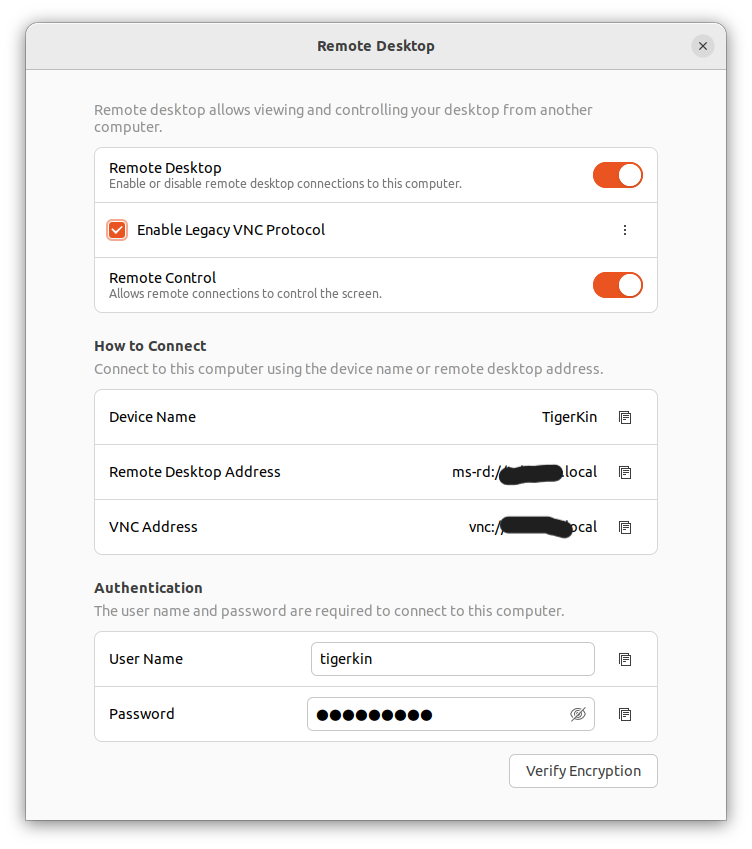
路径为:Settings –> Sharing –> Remote Desktop,打开后如下:
开启”Remote Desktop”,可以使用Windows的Remote Desktop Connection远程连接到Ubuntu桌面了;
开启”Remote Control”,可以使用远程连接软件进行操作控制;
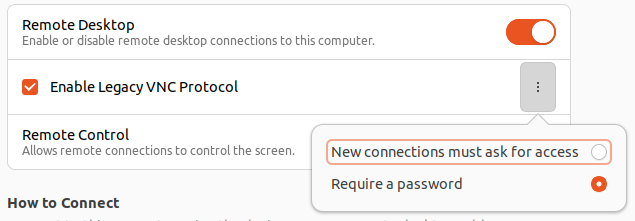
勾选”Enable Legacy VNC Protocol”,就可以使用VNC客户端进行远程桌面了;
另外,VNC最好是我们选择使用密码连接,因为这样方便一些:
账号密码是可以自定义设置的 ,在此设置页面的”Authentication”一栏。