1、openvpn介绍

1.1 openvpn介绍

OpenVPN 是一个基于 OpenSSL库的应用层 VPN 实现。和传统 VPN 相比,它的优点是简单易用。vpn直译就是虚拟专用通道,是提供企业之间或者公司之间安全数据传输的隧道。OpenVPN是一个全特性的SSL VPN,它使用2层或3层的安全网络技术,使用的是工业标准的SSL/TLS协议。SSL(Secure Sockets Layer 安全套接层),及其继任者传输层安全(TransportLayer Security,TLS)是为网络通信提供安全及数据完整性的一种安全协议。OpenVPN支持灵活的客户端授权方式,支持证书、智能卡、用户名和密码,允许用户可以通过防火墙连接到VPN的虚拟接口,OpenVPN不是一个基于web代理的应用,也不是基于浏览器访问。

1.2 openvpn使用场景

a) 企业员工远程办公,通过远程VPN连接到公司的服务器,访问公司ERP、OA等系统。IT技术人员通过VPN远程连接到机房进行系统维护。

b) 总部与分支机构之间联通,打通分支与总部的连接

c) 多IDC机房之间的互联,实现多机房之间的互联互通,数据共享,文件传送

注意:OpenVPN适用于功能性实现,对于大流量大带宽应用,建议使用点对点专线实现互联


2、openvpn服务端安装与配置

2.1 环境介绍

实现模拟OpenVPN功能的实验环境介绍:

使用两台内网内段192.168.3.0/24的机器模拟公网环境,左侧的lclient与右侧的lanserver在不同的网段,正常情况下不能通信

本次实验使用vpnclient的另外一个接口eth1模拟lclient,IP地址为10.0.0.17

2.2 基础环境配置及依赖包安装

2.2.1 开启内核参数ip转发

在vpnserver上开启ip转发功能,编辑/etc/sysctl.conf,修改net.ipv4.ip_forward为1

1
net.ipv4.ip_forward = 1

使用-p选项使参数修改生效

1
2
[root@vpnserver ~]# sysctl -p
net.ipv4.ip_forward = 1

2.2.2 停止iptables

在全部测试完成前,暂时先停掉iptables,以防止由于iptables的原因造成的问题,全部调试完成后再对iptables进行设置

1
2
3
4
5
[root@vpnserver ~]# /etc/init.d/iptables stop
iptables: Setting chains to policy ACCEPT: filter [ OK ]
iptables: Flushing firewall rules: [ OK ]
iptables: Unloading modules: [ OK ]
[root@vpnserver ~]# /etc/init.d/iptables stop

2.2.3 安装基础依赖包

安装openssl相关的依赖包

1
yum install openssl* -y

2.2.4 更新系统时间

使用ntp同步系统时间

1
ntpdate -u pool.ntp.org

制定计划任务,每隔5分钟进行时间同步

1
2
echo '#sync system date from ntpserver'>>/var/spool/cron/root
echo '*/5 * * * * /usr/sbin/ntpdate -u pool.ntp.org >/dev/null 2>&1' >>/var/spool/cron/root

检查配置信息

1
2
3
[root@vpnserver ~]# crontab -l
#sync system date from ntpserver
*/5 * * * * /usr/sbin/ntpdate -u pool.ntp.org >/dev/null 2>&1

2.3 安装lzo包

创建相应的安装包目录

1
2
mkdir -p /server/tools
cd /server/tools/

将相应的安装包上传至tools目录

1
2
3
4
[root@vpnserver tools]# ll
total 1476
-rw-r--r--. 1 root root 594855 Jul 5 08:33 lzo-2.09.tar.gz
-rw-r--r--. 1 root root 911158 Jul 5 08:33 openvpn-2.2.2.tar.gz

安装lzo源码包

1
2
3
4
5
6
cd /server/tools/
tar xf lzo-2.09.tar.gz
cd lzo-2.09
./configure
make
make install

2.4 安装openvpn软件

2.4.1 源码包安装

版本选择:目前最新的版本为2.3.1,本次选用Linux客户端和服务端的版本为2.2.2,windows客户端软件依然使用的是2.3.1

解压安装OpenVPN源码包

1
2
3
4
5
6
mkdir /application
tar xf openvpn-2.2.2.tar.gz -C /application/
cd /application/openvpn-2.2.2/
./configure --with-lzo-lib=/usr/local/lib--with-lzo-headers=/usr/local/include
make
make install

检查安装结果

1
2
[root@vpnserver openvpn-2.2.2]# which openvpn
/usr/local/sbin/openvpn

生成软链接

1
ln -s /application/openvpn-2.2.2/ /application/openvpn

2.4.2 生成CA证书

进入制作证书所在目录,后续很多的操作都在此目录

1
2
3
4
5
6
7
8
9
10
11
12
13
14
15
16
17
18
19
20
21
22
23
24
25
cd /application/openvpn-2.2.2/easy-rsa/2.0
[root@vpnserver 2.0]# ll
total 128
-rwxrwxr-x. 1 sunny sunny 119 Nov 25 2011 build-ca #生成CA证书
-rwxrwxr-x. 1 sunny sunny 352 Nov 25 2011 build-dh #生成密码协议交换文件
-rwxrwxr-x. 1 sunny sunny 188 Nov 25 2011 build-inter
-rwxrwxr-x. 1 sunny sunny 163 Nov 25 2011 build-key #生成免密码客户端密钥对
-rwxrwxr-x. 1 sunny sunny 157 Nov 25 2011 build-key-pass #生成带密码客户端密钥对
-rwxrwxr-x. 1 sunny sunny 249 Nov 25 2011 build-key-pkcs12
-rwxrwxr-x. 1 sunny sunny 268 Nov 25 2011 build-key-server #生成服务端密钥对
-rwxrwxr-x. 1 sunny sunny 213 Nov 25 2011 build-req
-rwxrwxr-x. 1 sunny sunny 158 Nov 25 2011 build-req-pass
-rwxrwxr-x. 1 sunny sunny 428 Nov 25 2011 clean-all #初始化配置,清空所有keys
-rwxrwxr-x. 1 sunny sunny 1457 Nov 25 2011 inherit-inter
-rwxrwxr-x. 1 sunny sunny 295 Nov 25 2011 list-crl
-rw-rw-r--. 1 sunny sunny 413 Nov 25 2011 Makefile
-rwxrwxr-x. 1 sunny sunny 7768 Oct 21 2010openssl-0.9.6.cnf
-rwxrwxr-x. 1 sunny sunny 8325 Nov 25 2011openssl-0.9.8.cnf
-rwxrwxr-x. 1 sunny sunny 8222 Nov 25 2011openssl-1.0.0.cnf
-rwxrwxr-x. 1 sunny sunny 12675 Nov 25 2011 pkitool #各证书生成主要调用此命令执行
-rw-rw-r--. 1 sunny sunny 9299 Nov 25 2011 README
-rwxrwxr-x. 1 sunny sunny 918 Nov 25 2011 revoke-full #证书吊销
-rwxrwxr-x. 1 sunny sunny 178 Nov 25 2011 sign-req
-rwxrwxr-x. 1 sunny sunny 1841 Nov 25 2011 vars #预先定义的证书基本信息
-rwxrwxr-x. 1 sunny sunny 714 Nov 25 2011 whichopensslcnf

修改证书预定义信息vars

首先对vars进行备份

1
cp vars vars.sunny.ori

编辑最后11行修改为如下内容:

1
2
3
4
5
6
7
8
9
10
11
export KEY_COUNTRY="CN"
export KEY_PROVINCE="HB"
export KEY_CITY="WuHan"
export KEY_ORG="sunny"
export KEY_EMAIL="519209@qq.com"
export KEY_EMAIL=519209@qq.com
export KEY_CN=sunny
export KEY_NAME=sunny
export KEY_OU=sunny
export PKCS11_MODULE_PATH=changeme
export PKCS11_PIN=1234

注意:如果是AD或者ldap请根据自身内容进行填写

载入vars配置,新开窗口制作证书时,需要重新加载vars文件

1
2
[root@vpnserver 2.0]# source vars
NOTE: If you run ./clean-all, I will be doing a rm -rf on/application/openvpn-2.2.2/easy-rsa/2.0/keys

第一次会提示初始化配置,按提示操作,后续正常使用时不可执行此操作,它会清空keys目录,并初始化序列

1
2
3
4
5
[root@vpnserver 2.0]# ./clean-all
[root@vpnserver 2.0]# ll keys/
total 4
-rw-r--r--. 1 root root 0 Jul 7 16:57 index.txt
-rw-r--r--. 1 root root 3 Jul 7 16:57 serial

制作CA证书,由于已经预先定义好了各个配置,一路回车,表示使用默认配置

1
2
3
4
5
6
7
8
9
10
11
12
13
14
15
16
17
18
19
20
21
[root@vpnserver 2.0]# ./build-ca
Generating a 1024 bit RSA private key
...++++++
......................................++++++
writing new private key to 'ca.key'
-----
You are about to be asked to enter information that will beincorporated
into your certificate request.
What you are about to enter is what is called a Distinguished Nameor a DN.
There are quite a few fields but you can leave some blank
For some fields there will be a default value,
If you enter '.', the field will be left blank.
-----
Country Name (2 letter code) [CN]:
State or Province Name (full name) [HB]:
Locality Name (eg, city) [WuHan]:
Organization Name (eg, company) [sunny]:
Organizational Unit Name (eg, section) [sunny]:
Common Name (eg, your name or your server's hostname) [sunny]:
Name [sunny]:
Email Address [519209@qq.com]:

查看生成的证书文件,ca.crt就是新生成的证书文件,ca.key就是私钥

1
2
3
4
5
6
[root@vpnserver 2.0]# ls -l keys
total 12
-rw-r--r--. 1 root root 1277 Jul 7 16:58 ca.crt CA证书文件
-rw-------. 1 root root 916Jul 7 16:58 ca.key CA的私钥
-rw-r--r--. 1 root root 0Jul 7 16:57 index.txt
-rw-r--r--. 1 root root 3Jul 7 16:57 serial

2.4.3 生成服务端证书与密钥

生成服务端证书调用的命令为build-key-server,后面直接跟服务端证书名即可,这里服务端证书名取为server

1
2
3
4
5
6
7
8
9
10
11
12
13
14
15
16
17
18
19
20
21
22
23
24
25
26
27
28
29
30
31
32
33
34
35
36
37
38
39
40
41
42
[root@vpnserver 2.0]# ./build-key-server server
Generating a 1024 bit RSA private key
....................++++++
............................................++++++
writing new private key to 'server.key'
-----
You are about to be asked to enter information that will beincorporated
into your certificate request.
What you are about to enter is what is called a Distinguished Nameor a DN.
There are quite a few fields but you can leave some blank
For some fields there will be a default value,
If you enter '.', the field will be left blank.
-----
Country Name (2 letter code) [CN]:
State or Province Name (full name) [HB]:
Locality Name (eg, city) [WuHan]:
Organization Name (eg, company) [sunny]:
Organizational Unit Name (eg, section) [sunny]:
Common Name (eg, your name or your server's hostname) [server]:
Name [sunny]:
Email Address [519209@qq.com]:
Please enter the following 'extra' attributes
to be sent with your certificate request
A challenge password []:123456
An optional company name []:sunny
Using configuration from/application/openvpn-2.2.2/easy-rsa/2.0/openssl-1.0.0.cnf
Check that the request matches the signature
Signature ok
The Subject's Distinguished Name is as follows
countryName :PRINTABLE:'CN'
stateOrProvinceName :PRINTABLE:'HB'
localityName :PRINTABLE:'WuHan'
organizationName :PRINTABLE:'sunny'
organizationalUnitName:PRINTABLE:'sunny'
commonName :PRINTABLE:'server'
name :PRINTABLE:'sunny'
emailAddress :IA5STRING:'519209@qq.com'
Certificate is to be certified until Jul 5 09:04:46 2026 GMT (3650 days)
Sign the certificate? [y/n]:y
1 out of 1 certificate requests certified, commit? [y/n]y
Write out database with 1 new entries
Data Base Updated

着色的是手动输入的,需要两次确认

检查生成的证书密钥对

1
2
3
4
[root@vpnserver 2.0]# ll keys/server*
-rw-r--r--. 1 root root 3943 Jul 7 17:04 keys/server.crt #服务端证书
-rw-r--r--. 1 root root 757Jul 7 17:04 keys/server.csr #服务端证书请求文件
-rw-------. 1 root root 916Jul 7 17:04 keys/server.key #服务端私钥

2.4.4 生成客户端证书与密钥

客户端生成证书是与客户的账号是一一对应的,每一个账号对应一个服务端证书文件

生成一个无密码验证密钥,使用命令build-key

新建一个test客户端密钥,此账号无需密码验证

1
2
3
4
5
6
7
8
9
10
11
12
13
14
15
16
17
18
19
20
21
22
23
24
25
26
27
28
29
30
31
32
33
34
35
36
37
38
39
40
41
42
[root@vpnserver 2.0]# ./build-key test
Generating a 1024 bit RSA private key
.....................................++++++
..++++++
writing new private key to 'test.key'
-----
You are about to be asked to enter information that will beincorporated
into your certificate request.
What you are about to enter is what is called a Distinguished Nameor a DN.
There are quite a few fields but you can leave some blank
For some fields there will be a default value,
If you enter '.', the field will be left blank.
-----
Country Name (2 letter code) [CN]:
State or Province Name (full name) [HB]:
Locality Name (eg, city) [WuHan]:
Organization Name (eg, company) [sunny]:
Organizational Unit Name (eg, section) [sunny]:
Common Name (eg, your name or your server's hostname) [test]:
Name [sunny]:
Email Address [519209@qq.com]:
Please enter the following 'extra' attributes
to be sent with your certificate request
A challenge password []:123456
An optional company name []:sunny
Using configuration from/application/openvpn-2.2.2/easy-rsa/2.0/openssl-1.0.0.cnf
Check that the request matches the signature
Signature ok
The Subject's Distinguished Name is as follows
countryName :PRINTABLE:'CN'
stateOrProvinceName :PRINTABLE:'HB'
localityName :PRINTABLE:'WuHan'
organizationName :PRINTABLE:'sunny'
organizationalUnitName:PRINTABLE:'sunny'
commonName :PRINTABLE:'test'
name :PRINTABLE:'sunny'
emailAddress :IA5STRING:'519209@qq.com'
Certificate is to be certified until Jul 5 09:13:01 2026 GMT (3650 days)
Sign the certificate? [y/n]:y
1 out of 1 certificate requests certified, commit? [y/n]y
Write out database with 1 new entries
Data Base Updated

生成一个需要密码验证的客户端密钥sunny,密码为123456,生产环境此密码需要设置较复杂

1
2
3
4
5
6
7
8
9
10
11
12
13
14
15
16
17
18
19
20
21
22
23
24
25
26
27
28
29
30
31
32
33
34
35
36
37
38
39
40
41
42
43
44
45
[root@vpnserver 2.0]# ./build-key-pass sunny
Generating a 1024 bit RSA private key
...++++++
...............................................++++++
writing new private key to 'sunny.key'
Enter PEM pass phrase: #此处需要输入用户密码
Verifying - Enter PEM pass phrase: #此处需要确认用户密码
-----
You are about to be asked to enter information that will beincorporated
into your certificate request.
What you are about to enter is what is called a Distinguished Nameor a DN.
There are quite a few fields but you can leave some blank
For some fields there will be a default value,
If you enter '.', the field will be left blank.
-----
Country Name (2 letter code) [CN]:
State or Province Name (full name) [HB]:
Locality Name (eg, city) [WuHan]:
Organization Name (eg, company) [sunny]:
Organizational Unit Name (eg, section) [sunny]:
Common Name (eg, your name or your server's hostname) [sunny]:
Name [sunny]:
Email Address [519209@qq.com]:

Please enter the following 'extra' attributes
to be sent with your certificate request
A challenge password []:123456
An optional company name []:sunny
Using configuration from/application/openvpn-2.2.2/easy-rsa/2.0/openssl-1.0.0.cnf
Check that the request matches the signature
Signature ok
The Subject's Distinguished Name is as follows
countryName :PRINTABLE:'CN'
stateOrProvinceName :PRINTABLE:'HB'
localityName :PRINTABLE:'WuHan'
organizationName :PRINTABLE:'sunny'
organizationalUnitName:PRINTABLE:'sunny'
commonName :PRINTABLE:'sunny'
name :PRINTABLE:'sunny'
emailAddress :IA5STRING:'519209@qq.com'
Certificate is to be certified until Jul 5 09:16:29 2026 GMT (3650 days)
Sign the certificate? [y/n]:
1 out of 1 certificate requests certified, commit? [y/n]y
Write out database with 1 new entries
Data Base Updated

查看生成的客户端密钥

1
2
3
4
5
6
7
[root@vpnserver 2.0]# ls -l keys/{test,sunny}*
-rw-r--r--. 1 root root 3821 Jul 7 17:16 keys/sunny.crt
-rw-r--r--. 1 root root 757Jul 7 17:16 keys/sunny.csr
-rw-------. 1 root root 1041 Jul 7 17:16 keys/sunny.key
-rw-r--r--. 1 root root 3816 Jul 7 17:13 keys/test.crt
-rw-r--r--. 1 root root 757Jul 7 17:13 keys/test.csr
-rw-------. 1 root root 916Jul 7 17:13 keys/test.key

2.4.5 生成密码协议交换文件

使用命令build-dh命令生成密码协议交换文件,直接执行命令即可。

1
2
3
4
5
6
[root@vpnserver 2.0]# ./build-dh
Generating DH parameters, 1024 bit long safe prime, generator 2
This is going to take a long time
.........................................+.............................++*++*++*
[root@vpnserver 2.0]# ls keys/dh1024.pem
keys/dh1024.pem

2.4.6 生成防攻击key文件

生成防止攻击的key文件

1
2
3
[root@vpnserver 2.0]# openvpn --genkey --secret keys/ta.key
[root@vpnserver 2.0]# ll keys/ta.key
-rw-------. 1 root root 636 Jul 7 17:22 keys/ta.key

2.4.7 编辑服务端配置文件

创建配置文件目录

1
2
mkdir /etc/openvpn
cd /etc/openvpn

将keys目录拷贝到配置文件目录

1
2
3
4
[root@vpnserver openvpn]# cp -ap /application/openvpn/easy-rsa/2.0/keys.
[root@vpnserver openvpn]# ll
total 4
drwx------. 2 root root 4096 Jul 7 17:22 keys

将服务端配置文件拷贝到/etc/openvpn目录

1
cp /application/openvpn/sample-config-files/server.conf server.bak

将server.bak中的有效指令重定向至server.conf

1
grep -Ev "#|;|^$" server.bak >server.conf

编辑server.conf文件,修改后的文件内容如下:

1
2
3
4
5
6
7
8
9
10
11
12
13
14
15
16
17
18
19
20
local 192.168.3.201
port 52115
proto tcp
dev tun
ca /etc/openvpn/keys/ca.crt
cert /etc/openvpn/keys/server.crt
key /etc/openvpn/keys/server.key
dh /etc/openvpn/keys/dh1024.pem
server 10.8.0.0 255.255.255.0
push "route 192.168.18.0 255.255.255.0"
ifconfig-pool-persist ipp.txt
keepalive 10 120
comp-lzo
persist-key
persist-tun
status openvpn-status.log
log /var/log/openvpn.log
duplicate-cn
client-to-client
verb 3

local本地监听的IP地址

port本地监听的端口,默认为1194,安全起见,建议修改

proto协议,这里使用tcp协议,稳定性更好

dev tun,使用tunnel接口,另外还有一种为tap

ca CA证书文件路径

cert服务端证书路径

key服务端密钥文件路径

dh证书密钥交换文件路径

server分配给客户端的IP地址,即客户端拔号成功后获取到的IP地址

push推送到客户端的路由信息,一般这里推送的是vpnserver端的本地子网

ifconfig-pool-persist记录客户端所获取到的IP地址信息列表,客户端重启后获取到与上次分配的IP相同的IP地址信息

keepalive 10 120每隔10秒客户端ping服务端,确保服务端没有离线,超长为120秒

comp-lzo允许压缩传输

status openvpn-status.log连接状态日志

log连接日志信息

duplicate-cn允许同一账号多人同时使用

client-to-client允许客户端与客户端之间通信

verb日志级别

;max-clients 100最大客户端数量默认为100个

2.5 启动服务端

2.5.1 启动服务端

1
2
3
4
5
[root@vpnserver openvpn]# /usr/local/sbin/openvpn --config/etc/openvpn/server.conf &
[1] 22510
[root@vpnserver openvpn]# ps -ef|grep openvpn
root 22510 22401 0 09:06 pts/0 00:00:00/usr/local/sbin/openvpn --config /etc/openvpn/server.conf
root 22521 22401 0 09:06 pts/0 00:00:00 grep openvpn

报错处理一:

1
2
3
[root@vpnserver openvpn]# less /var/log/openvpn.log
Options error: You must define private key file (--key) or PKCS#12file (--pkcs12)
Use --help for more information.

根据提示,表明配置文件中没有加入服务端的密钥文件路径,或者路径不对,检查server.conf文件中key文件的配置

1
key /etc/openvpn/keys/server.key

2.5.2 将OpenVPN加入开机自启动

需要将OpenVPN加入开机自启动

方法一:

将启动命令加入到/etc/rc.local

1
echo “/usr/local/sbin/openvpn --config /etc/openvpn/server.conf>/dev/null  &”>>/etc/rc.local

方法二:

利用sample-scripts下面的脚本

1
2
3
4
cp /application/openvpn/sample-scripts/openvpn.init /etc/init.d/openvpn
chkconfig openvpn on
chkconfig --list openvpn
openvpn 0:off 1:off 2:on 3:on 4:on 5:on 6:off

3、 openvpn客户端安装与配置

3.1 windows客户端安装与配置

3.1.1 查看操作系统版本

这里提供了不同操作系统版本,可以根据自己操作系统的版本选择对应的客户端软件进行安装,win8和win10选择win7客户端安装,在我的电脑上右键属性可以查看操作系统版本

3.1.2 安装windows客户端软件

win10可以使用win7客户端,这里以win7-64位操作系统为例,进入windows-win7-64位

双击“openvpn-install-2.3.11-I601-x86_64(win7).exe”

点击”next”

点击“I Agree”

不做任何修改,点击Next

选择安装路径,按默认路径即可,64位系统默认为”C:\Program Files\OpenVPN”,其它系统路径会略有不同

点击Install,如果提示是否信任,勾选“Always trust software from …”,点击Install

点击next进入下一步

点击Finish完成安装

3.1.3 windows客户端软件配置

3.1.4 拷坝证书文件

进入到openvpn安装目录下的config文件夹中,我的路径为“C:\Program Files\OpenVPN\config“,新建test目录,将openvpnserver上/etc/openvpn/keys目录下的证书文件ca.crt,test.crt,test.key拷贝到config目录中config目录拷贝

在test目录下新建test.ovpn文件,此文件的模板为/application/openvpn/sample-config-files/client.conf,此文件test.ovpn内容如下:

1
2
3
4
5
6
7
8
9
10
11
12
13
14
client
dev tun
proto tcp
remote 192.168.3.201 52115
resolv-retry infinite
nobind
persist-key
persist-tun
ca ca.crt
cert test.crt
key test.key
ns-cert-type server
comp-lzo
verb 3

3.1.5 连接测试

安装完成后桌面会出现一个图标,双击点开,右下角会出现一个带小锁的小图标,在图标上点击右键,选中账号test,点击Connect,如果没有密码,会直接连接,如果需要密码,则会提示输入密码

拔号成功后,右下角会弹出提示

并且原来灰色的图标会变为绿色,表示已经连接上了

3.1.6 连通性测试

此时ping VPN服务器的内网口192.168.18.201已通,但到lanserver192.168.18.203不通

1
2
3
4
5
6
7
8
C:\Users\Administrator>ping 192.168.18.201
正在 Ping 192.168.18.201 具有 32 字节的数据:
来自 192.168.18.201 的回复: 字节=32 时间<1ms TTL=64
来自 192.168.18.201 的回复: 字节=32 时间=1ms TTL=64
C:\Users\Administrator>ping 192.168.18.203
正在 Ping 192.168.18.203 具有 32 字节的数据:
请求超时。
请求超时。

查看lanserver上的路由

1
2
3
4
5
6
[root@lanserver ~]# route -n
Kernel IP routing table
Destination Gateway Genmask Flags Metric Ref Use Iface
192.168.18.0 0.0.0.0 255.255.255.0 U 0 0 0 eth0
169.254.0.0 0.0.0.0 255.255.0.0 U 1002 0 0 eth0
0.0.0.0 192.168.18.2 0.0.0.0 UG 0 0 0 eth0

在windows上ping 192.168.18.203,然后在lanserver上抓包测试

1
2
3
4
5
[root@lanserver ~]# tcpdump icmp
tcpdump: verbose output suppressed, use -v or -vv for full protocoldecode
listening on eth0, link-type EN10MB (Ethernet), capture size 65535bytes
18:47:48.676249 IP 10.8.0.6 > 192.168.18.203: ICMP echo request,id 1, seq 17288, length 40
18:47:48.676288 IP 192.168.18.203 > 10.8.0.6: ICMP echo reply, id1, seq 17288, length 40

可见有包过来,但没有回包,原因是lanserver上有一条默认网关,但是指向的不是vpnserver,解决办法有两个:

方法一:将lanserver上的网关指向vpnserver

1
2
3
4
5
6
7
8
[root@lanserver ~]# route del default gw 192.168.18.2
[root@lanserver ~]# route add default gw 192.168.18.201
[root@lanserver ~]# route -n
Kernel IP routing table
Destination Gateway Genmask Flags Metric Ref Use Iface
192.168.18.0 0.0.0.0 255.255.255.0 U 0 0 0 eth0
169.254.0.0 0.0.0.0 255.255.0.0 U 1002 0 0 eth0
0.0.0.0 192.168.18.201 0.0.0.0 UG 0 0 0 eth0

添加完成后,windows客户端与lanserver立刻就通了

方法二:单独添加一条到10.8.0.0/24的路由

首先删除默认路由,删除成功后,客户端与lanserver立马就不通了

1
route del default gw 192.168.18.201

添加到10.8.0.0/24网段的路由

1
route add -net 10.8.0.0/24 gw 192.168.18.201

方法三:网关不在vpnserver上,在vpnserver上添加一条NAT地址转换,将所有的10.8.0.0/24网段的IP都转成192.168.18.201,在iptables上添加如下语句

1
iptables -t nat -APOSTROUTING -s 10.8.0.0/24 -o eth0 -j MASQUERADE

上面的命令也可以用如下命令替换

1
iptables -t nat -APOSTROUTING -s 10.8.0.0/24 -o eth0 -j SNAT --to-source 192.168.18.201

在windows客户端上ping,实际IP为10.8.0.6,而在lanserver上抓包看到的源地址显示为192.168.18.201

1
2
3
4
5
6
7
[root@lanserver ~]# tcpdump -i eth0 icmp
tcpdump: verbose output suppressed, use -v or -vv for full protocoldecode
listening on eth0, link-type EN10MB (Ethernet), capture size 65535bytes
19:21:52.889132 IP 192.168.18.201 >192.168.18.203: ICMP echo request, id 1, seq 18615, length 40
19:21:52.889154 IP 192.168.18.203 > 192.168.18.201: ICMP echoreply, id 1, seq 18615, length 40
19:21:53.904123 IP 192.168.18.201 > 192.168.18.203: ICMP echorequest, id 1, seq 18616, length 40
19:21:53.904144 IP 192.168.18.203 > 192.168.18.201: ICMP echoreply, id 1, seq 18616, length 40

小结:

方法一优点实施简单,只需lanserver网关指向vpnserver即可,在某些网关指向路由器的情形下,可以在路由器上添加一条到远端10.8.0.0/24的路由即可,缺点是需要经过路由器跳转,多了一跳

方法二需要在所有的lanserver上添加路由,实施起来较麻烦。

方法三针对方法2进行改进,不需要在每台机器上配置路由,缺点是无法显示出源IP信息

3.2 linux客户端安装与配置

3.2.1 安装linux客户端软件

linux客户端软件的安装与服务端软件安装过程一样,也是需要先安装lzo,然后源码编译openvpn2.2.2,具体安装操作过程可参照

3.2.2 编辑客户端配置文件

新建配置文件目录/etc/openvpn

1
2
mkdir /etc/openvpn
cd /etc/openvpn

将ca.crt,test.crt,test.key,client.conf上传

1 [root@vpnclient openvpn]# ls

1
ca.crt  client.conf  test.crt test.key

client.conf内容与windows客户端下的test.ovpn内容一样

1
2
3
4
5
6
7
8
9
10
11
12
13
14
15
[root@vpnclient openvpn]# cat client.conf
client
dev tun
proto tcp
remote 192.168.3.201 52115
resolv-retry infinite
nobind
persist-key
persist-tun
ca ca.crt
cert test.crt
key test.key
ns-cert-type server
comp-lzo
verb 3

3.2.3 远程拔入vpn

使用与服务端类似的启动方式进行启动,开机自启方式可以加入/etc/rc.local

1
2
3
4
5
6
7
8
9
10
11
12
13
14
15
16
17
18
19
20
21
[root@vpnclient openvpn]# /usr/local/sbin/openvpn --config/etc/openvpn/client.conf  &
[1] 16347
[root@vpnclient openvpn]# Thu Jul 7 19:49:00 2016 OpenVPN 2.2.2 x86_64-unknown-linux-gnu [SSL] [LZO2][EPOLL] [eurephia] built on Jul 7 2016
Thu Jul 7 19:49:00 2016 NOTE:OpenVPN 2.1 requires '--script-security 2' or higher to call user-definedscripts or executables
…此处省略若干行
Thu Jul 7 19:49:03 2016 ROUTEdefault_gateway=192.168.3.251
Thu Jul 7 19:49:04 2016TUN/TAP device tun0 opened
Thu Jul 7 19:49:04 2016TUN/TAP TX queue length set to 100
Thu Jul 7 19:49:04 2016/sbin/ifconfig tun0 10.8.0.10 pointopoint 10.8.0.9 mtu 1500
Thu Jul 7 19:49:04 2016/sbin/route add -net 192.168.18.0 netmask 255.255.255.0 gw 10.8.0.9
Thu Jul 7 19:49:04 2016/sbin/route add -net 10.8.0.0 netmask 255.255.255.0 gw 10.8.0.9
Thu Jul 7 19:49:04 2016Initialization Sequence Completed
拔号成功后,会多出一个接口tun0
[root@vpnclient openvpn]# ifconfig tun0
tun0 Linkencap:UNSPEC HWaddr00-00-00-00-00-00-00-00-00-00-00-00-00-00-00-00
inetaddr:10.8.0.10 P-t-P:10.8.0.9 Mask:255.255.255.255
UP POINTOPOINTRUNNING NOARP MULTICAST MTU:1500 Metric:1
RX packets:0errors:0 dropped:0 overruns:0 frame:0
TX packets:0errors:0 dropped:0 overruns:0 carrier:0
collisions:0txqueuelen:100
RX bytes:0 (0.0b) TX bytes:0 (0.0 b)

如果是带密码认证的用户,以sunny为例,将sunny.crt,sunny.key,sunny.ovpn上传至/etc/openvpn,sunny.ovpn的内容如下:

1
2
3
4
5
6
7
8
9
10
11
12
13
14
15
client
dev tun
proto tcp
remote 192.168.3.204 52115
resolv-retry infinite
nobind
persist-key
persist-tun
ca ca.crt
cert sunny.crt
key sunny.key
ns-cert-type server
comp-lzo
verb 3
--script-security 3

在/etc/openvpn下新建密码文件pass.txt

1
123456

安全起见,修改pass.txt权限为400

1
chmod 400 /etc/openvpn/pass.txt

启动客户端

1
openvpn--config /etc/openvpn/sunny.ovpn --askpass /etc/openvpn/pass.txt &

加入开机自启的方法:

1
echo ‘openvpn --config /etc/openvpn/sunny.ovpn --askpass/etc/openvpn/pass.txt >/dev/null &’>>/etc/rc.local

3.2.4 检查路由变化和连通性

测试到192.168.18.203网络是通的,停掉openvpn服务(pkill openvpn)后,网络又断开了,linux客户端配置成功


4、 openvpn高可用方案

4.1 使用openvpn实现代理访问

4.1.1 翻墙解决方案需求分析

与web代理类似,客户的IP地址通过代理访问后,源地址变成vpnserver的外网IP,客户端所有的上网行为都走vpnserver,相当于是远端的vpnserver去请求网页服务。之前的普通模式只是访问远端特定的内网服务器时,才会走vpnserver,其它外网访问依然走客户端本地网络,如果这台vpnserver在国外,可以通过此服务器访问国外的网站,请不要使用此方法用于非法用途,否则后果自负。

具体逻辑如下图所示:

4.1.2 代理访问解决方案配置

和普通配置相比,在server.conf上增加如下配置

1
2
3
push "redirect-gateway def1 bypass-dhcp bypass-dns"
push "dhcp-option DNS 8.8.8.8"
push "dhcp-option DNS 8.8.4.4"

启动转发功能

1
2
sed –i ‘s#net.ipv4.ip_forward= 0# net.ipv4.ip_forward= 1#g’/etc/sysctl.conf
sysctl –p

开启防火墙NAT映射

1
iptables -t nat -A POSTROUTING -s 10.8.0.0/24 -o eth0 -j MASQUERADE

开放防火墙

1
iptables -A INPUT -p udp -m state –state NEW –m udp  --dport 52115 -j ACCEPT

4.2 同一账号拔入不同服务器

4.2.1 实现原理

配置两台vpnserver,第2台服务器上同样也需要开启net.ipv4.ip_forward,源码编译安装完成后,所有的证书制作过程不需要了,直接将vpnserver1下/etc/openvpn/keys目录拷贝到vpnserver2中,这样两台vpnserver的内容是一样的,除了接入的IP地址不一样,只需要在客户端生成一个新的配置文件(client.conf/test2.ovpn),

4.2.2 同一账号拔入不同vpnserver方案

在vpnserver1上对证书文件目录打包

1
2
3
[root@vpnserver openvpn]# cd /tmp
[root@vpnserver tmp]# tar zcvf openvpn.tar.gz /etc/openvpn/
[root@vpnserver tmp]# scp openvpn.tar.gz 192.168.3.204:/tmp

在vpnserver2上解包

1
2
3
[root@vpnserver2 tmp]# tar xf openvpn.tar.gz -C /
[root@vpnserver2 tmp]# ls /etc/openvpn/
ipp.txt keys openvpn-status.log server.bak server.conf

修改vpnsever2上的server.conf文件

1
2
local 192.168.3.204
server10.8.1.0 255.255.255.0

启动vpnserver2

1
/usr/local/sbin/openvpn --config /etc/openvpn/server.conf &

加入开机自启动

1
echo "/usr/local/sbin/openvpn --config /etc/openvpn/server.conf>/dev/null  &">>/etc/rc.local

修改客户端配置文件,新增一个配置文件,除IP地址外,其它均一样

一旦一台vpnserver停掉了,需要手动将此链接断开,拔号到另外一台vpnserver

优点:无额外单点故障,配置简单

缺点:需要手工切换拔号服务器

4.3 OPENVPN负载均衡

4.3.1 负载均衡实现

配置server客户端分配不同的IP地址

1
2
3
4
5
6
server1
server 10.8.0.0 255.255.255.0
server2
server 10.8.1.0255.255.255.0
server3
server 10.8.2.0 255.255.255.0

在vpnserver2上添加如下命令中的一条,做地址转换

方法1:

1
iptables -t nat -APOSTROUTING -s 10.8.1.0/24 -o eth0 -j MASQUERADE

方法2:

1
iptables -t nat -APOSTROUTING -s 10.8.1.0/24 -o eth0 -j SNAT --to-source 192.168.18.204

客户端配置配置文件修改

1
2
3
4
remote 192.168.3.201 52115
remote 192.168.3.204 52115
remote-random
resolv-retry 20

这样只需要建一个配置文件即可,当一台vpnserver断掉时,20秒后自动连另外一台vpnserver


5、 openvpn统一身份认证体系解决方案

5.1 OpenVPN统一身份验证分类

1) 通过本地证书密钥认证

2) 本地文件认证

本地新建账号密码文件,通过脚本验证本地的密码文件

3) 通过数据库认证

方法1:利用脚本程序或PHP程序不从本地文件读,从Mysql数据库中读取

方法2:使用pam_mysql模块

4) LDAP统一用户认证

方法1:openvpn-auth-ldap

方法2:利用第一个文件认证的思路,去LDAP查询,也可以和本地文件做比较

5) Radis(Remote Authentication Dial In User Service)认证,主要用来验证、授权、计费

6) 利用微软的活动目录认证(可以和LDAP打通)

7) 结合U盾等设备认证

5.2 OpenVPN本地身份认证

5.2.1 服务端配置

在/etc/openvpn/server.conf中添加如下配置

1
2
3
4
5
#auth password added by sunny
script-security 3
auth-user-pass-verify /etc/openvpn/checkpsw.sh via-env
client-cert-not-required
username-as-common-name

说明:

script-security 3 使用3级别开启脚本使用功能

auth-user-pass-verify /etc/openvpn/checkpsw.sh via-env使用脚本验证本地文件

client-cert-not-required 不验证客户端证书,如果启用证书和密码双重认证注释此行username-as-common-name 使用客户提供的UserName作为CommonName

在/etc/openvpn下新建脚本文件checkpsw.sh

1
2
3
4
5
6
7
8
9
10
11
12
13
14
15
16
17
18
19
20
21
22
23
24
25
26
27
#!/bin/sh
###########################################################
# checkpsw.sh (C) 2004 Mathias Sundman <mathias@openvpn.se>
#
# This script will authenticate OpenVPN users against
# a plain text file. The passfile should simply contain
# one row per user with the username first followed by
# one or more space(s) or tab(s) and then the password.
PASSFILE="/etc/openvpn/psw-file"
LOG_FILE="/var/log/openvpn-password.log"
TIME_STAMP=`date "+%Y-%m-%d %T"`
###########################################################
if [ ! -r "${PASSFILE}" ]; then
echo "${TIME_STAMP}: Could not open password file\"${PASSFILE}\" for reading." >> ${LOG_FILE}
exit 1
fi
CORRECT_PASSWORD=`awk'!/^;/&&!/^#/&&$1=="'${username}'"{print $2;exit}'${PASSFILE}`
if [ "${CORRECT_PASSWORD}" = "" ]; then
echo "${TIME_STAMP}: User does not exist: username=\"${username}\",password=\"${password}\"." >> ${LOG_FILE}
exit 1
fi
if [ "${password}" = "${CORRECT_PASSWORD}" ]; then
echo "${TIME_STAMP}: Successful authentication:username=\"${username}\"." >> ${LOG_FILE}
exit 0
fi
echo "${TIME_STAMP}: Incorrect password:username=\"${username}\", password=\"${password}\".">> ${LOG_FILE}
exit 1</mathias@openvpn.se>

赋予可执行权限

1
chmod u+x checkpsw.sh

新建密码文件/etc/openvpn/psw-file,前面是用户,后面是密码,每行一条,中间用空格或者tab键隔开

1
2
client01        111111
client02 123456

修改密码文件权限

1
chmod 400 psw-file

重启openvpn

1
2
3
4
pkill openvpn
ps -ef|grep openvpn
/etc/init.d/openvpn start
ps -ef|grep openvpn

5.2.2 客户端配置

5.2.2.1 windows客户端配置

编辑test用户的客户端配置文件test-192.168.3.201.ovpn,新增红色部分配置,修改后的配置如下:

1
2
3
4
5
6
7
8
9
10
11
12
13
14
15
client
dev tun
proto tcp
remote 192.168.3.201 52115
resolv-retry infinite
nobind
persist-key
persist-tun
ca ca.crt
;cert test.crt
;key test.key
ns-cert-type server
comp-lzo
verb 3
auth-user-pass

5.2.2.2 linux客户端配置

Linux客户端配置文件如下:

1
2
3
;cert test.crt
;key test.key
auth-user-pass auth-user-pass/etc/openvpn/psw-file

新建密码文件/etc/openvpn/psw-file,第一行为用户名,第二行为密码

1
2
client02
123456

修改权限为400

1
chmod 400 /etc/openvpn/psw-file

添加到开机自启动

1
echo “/usr/local/sbin/openvpn--config /etc/openvpn/client.conf >/dev/null &”>>/etc/rc.local

此功能需要编译时加入–enable-password-save参数,即

1
./configure --enable-password-save --with-lzo-lib=/usr/local/lib --with-lzo-headers=/usr/local/include

否则会报如下错误:

1
'Auth' password cannot be read from a file

5.2.3 连接测试

windows客户端直接拔号测试,会弹出用户密码输入框,输入client01,111111

linux客户端直接启动服务即可


1.OpenVPN基本概述

VPN直译就是虚拟专用通道,是提供给企业之间或者个人与公司之间安全数据传输的隧道,OpenVPN无疑是Linux下开源VPN先锋,提供了良好的性能和友好的用户界面GUI。OpenVPN和传统的VPN相比,它的优点是安全、简单易用。

其它vpn:pptp 互联网上服务商给拦截。不稳定。

openvpn原理(面试重点)

OpenVpn的技术核心是虚拟网卡,其次是SSL协议实现,由于SSL协议在其它的词条中介绍的比较清楚了,这里重点对虚拟网卡及其在OpenVpn的中的工作机理进行介绍:

虚拟网卡是使用网络底层编程技术实现的一个驱动软件,安装后在主机上多出现一个网卡,可以像其它网卡一样进行配置。服务程序可以在应用层打开虚拟网卡,如果应用软件(如IE)向虚拟网卡发送数据,则服务程序可以读取到该数据,如果服务程序写合适的数据到虚拟网卡,应用软件也可以接收得到。虚拟网卡在很多的操作系统下都有相应的实现,这也是OpenVpn能够跨平台一个很重要的理由。

在OpenVpn中,如果用户访问一个远程的虚拟地址(属于虚拟网卡配用的地址系列,区别于真实地址),则操作系统会通过路由机制将数据包(TUN模式)或数据帧(TAP模式)发送到虚拟网卡上,服务程序接收该数据并进行相应的处理后,通过SOCKET从外网上发送出去,远程服务程序通过SOCKET从外网上接收数据,并进行相应的处理后,发送给虚拟网卡,则应用软件可以接收到,完成了一个单向传输的过程,反之亦然。

2.OpenVPN应用场景

Peer-to-Peer VPN(点对点连接),将Internet两台机器(公网地址)使用VPN连接起来,比如上海服务器和北京服务器之间的数据需要相互调用,但是数据又比较敏感,直接通过http公共网络传输,容易被窃取,如果拉一条专线成本又太高。那么我们可以通过VPN使用现有网络,将两台主机逻辑上捆绑在一个虚拟网络中,这样既保证了数据传输安全,同时又节省了成本。

3.OpenVPN场景实践(通过任何网络远程访问企业内部服务器)

1.用户通过Internet连接vpn服务通过加密技术进行数据传输;

2.加密实现方式是客户端公钥加密,服务端私钥解密;

3.客户端连接vpn后,vpn会给客户端推送一条内网路由以此实现内部主机通信

4.配置

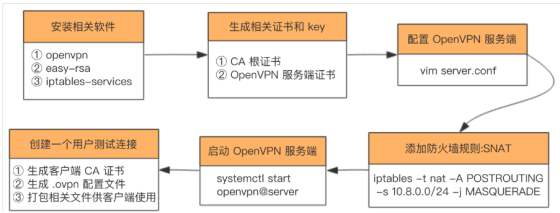
1、搭建流程图

image

2、安装openvpn、easy-rsa、iptables-server

1
2
yum install epel-* -y
yum -y install openvpn easy-rsa iptables-services

3、生成证书及相关文件

利用easy-rsa生成相关证书文件

  • CA根证书
  • openvpn服务器证书
  • Diffie-Hellman算法用到的key 复制easy-rsa脚本到/etc/openvpn下面,该脚本是用来生成CA证书和各种key文件

复制easy-rsa脚本到/etc/openvpn下面,该脚本是用来生成CA证书和各种key文件

1
cp -r /usr/share/easy-rsa/ /etc/openvpn/

Thoughts

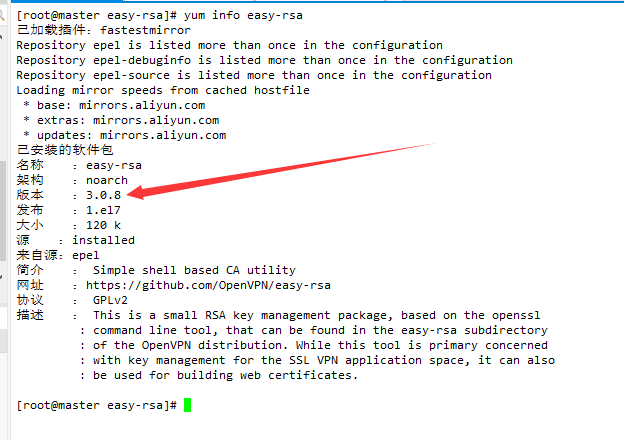
查看证书版本号进入相关目录,创建文件并设置变量

Thoughts

1
2
3
4
5
6
7
8
9
10
11
[root@openvpn openvpn]# cd /etc/openvpn/easy-rsa/3.0.8/
[root@openvpn 3.0.8]# ls
easyrsa openssl-easyrsa.cnf vars x509-types
#新建vars文件,编辑变量,初始化
[root@openvpn 3.0.8]# vim vars
export KEY_COUNTRY="CN"
export KEY_PROVINCE="ShangHai"
export KEY_CITY="ShangHai"
export KEY_ORG="YCZB"
export KEY_EMAIL="heian@heian.com"
[root@openvpn 3.0.8]# source ./vars

生成CA根证书

1
2
#初始化 pki 相关目录 
./easyrsa init-pki

Thoughts

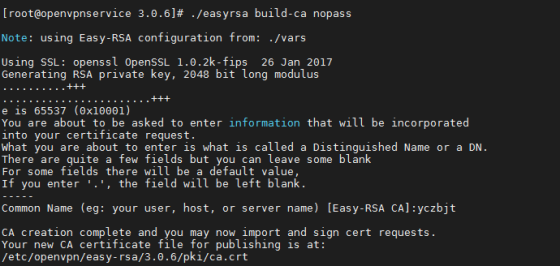
生成 CA 根证书, 输入 Common Name,名字随便起。

1
./easyrsa build-ca nopass 

Thoughts

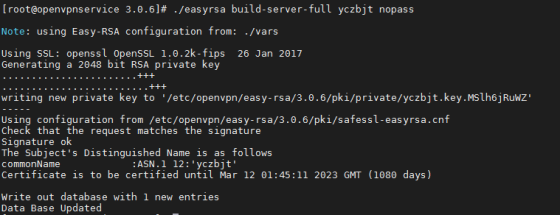
生成openvpn服务器证书和密钥,第一个参数是证书名称

1
./easyrsa build-server-full server nopass

Thoughts

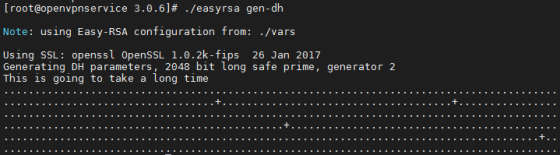
生成Diffie-Hellman算法需要的密钥文件

1
./easyrsa gen-dh   #创建 Diffie-Hellman ,时间比较久一些

Thoughts

Thoughts

生成tls-auth key,为了防止DDOS和TLS攻击,这个属于可选安全配置

1
openvpn --genkey --secret ta.key

openvpn文件整理

1
2
3
4
5
6
7
8
9
10
11
12
mkdir /etc/openvpn/server/certs 
cd /etc/openvpn/server/certs/
# SSL 协商时 Diffie-Hellman 算法需要的 key
cp /etc/openvpn/easy-rsa/3/pki/dh.pem ./
# CA 根证书
cp /etc/openvpn/easy-rsa/3/pki/ca.crt ./
# open VPN 服务器证书
cp /etc/openvpn/easy-rsa/3/pki/issued/server.crt ./server.crt
# open VPN 服务器证书 key
cp /etc/openvpn/easy-rsa/3/pki/private/server.key ./server.key
# tls-auth key
cp /etc/openvpn/easy-rsa/3/ta.key ./

创建openvpn日志目录

1
2
3
4
5
[root@openvpnservice certs]# mkdir /etc/openvpn/ccd
#创建日志目录
[root@openvpnservice certs]# mkdir -p /var/log/openvpn/
#给予权限
[root@openvpnservice certs]# chown openvpn:openvpn /var/log/openvpn

4、配置OpenVPN

创建配置文件(原配置文件在 /usr/share/doc/openvpn-2.4.9/sample/sample-config-files/server.conf )

1
2
3
4
5
6
7
8
9
10
11
12
13
14
15
16
17
18
19
20
21
[root@openvpnservice ~]# cd /etc/openvpn/
[root@openvpnservice openvpn]# vim server.conf
port 1194 #端口
proto udp #协议
dev tun #采用路由隧道模式tun
ca ca.crt #ca证书文件位置
cert server.crt #服务端公钥名称
key server.key #服务端私钥名称
dh dh.pem #交换证书
server 10.8.0.0 255.255.255.0 #给客户端分配地址池,注意:不能和VPN服务器内网网段有相同
push "route 172.16.1.0 255.255.255.0" #允许客户端访问内网172.16.1.0网段
ifconfig-pool-persist ipp.txt #地址池记录文件位置
keepalive 10 120 #存活时间,10秒ping一次,120 如未收到响应则视为断线
max-clients 100 #最多允许100个客户端连接
status openvpn-status.log #日志记录位置
verb 3 #openvpn版本
client-to-client #客户端与客户端之间支持通信
log /var/log/openvpn.log #openvpn日志记录位置
persist-key #通过keepalive检测超时后,重新启动VPN,不重新读取keys,保留第一次使用的keys。
persist-tun #检测超时后,重新启动VPN,一直保持tun是linkup的。否则网络会先linkdown然后再linkup
duplicate-cn

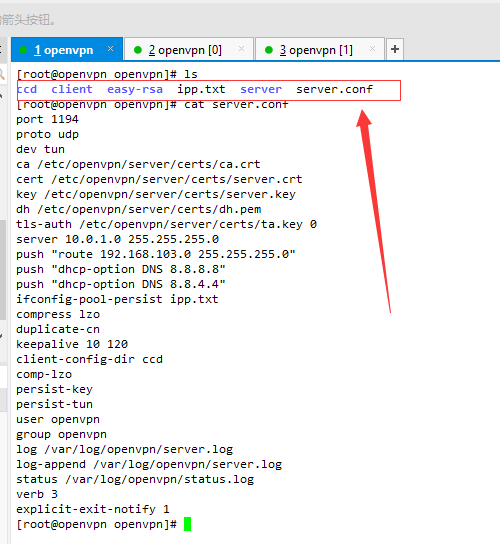
我的配置Server端的文件:

1
2
3
4
5
6
7
8
9
10
11
12
13
14
15
16
17
18
19
20
21
22
23
24
25
26
27
28
port 1194
proto udp
dev tun
ca /etc/openvpn/server/certs/ca.crt
cert /etc/openvpn/server/certs/server.crt
key /etc/openvpn/server/certs/server.key
dh /etc/openvpn/server/certs/dh.pem
tls-auth /etc/openvpn/server/certs/ta.key 0
server 10.0.1.0 255.255.255.0
push "route 192.168.103.0 255.255.255.0"
push "dhcp-option DNS 8.8.8.8"
push "dhcp-option DNS 8.8.4.4"
ifconfig-pool-persist ipp.txt
client-to-client
compress lzo
duplicate-cn
keepalive 10 120
client-config-dir ccd
comp-lzo
persist-key
persist-tun
user openvpn
group openvpn
log /var/log/openvpn/server.log
log-append /var/log/openvpn/server.log
status /var/log/openvpn/status.log
verb 3
explicit-exit-notify 1

Thoughts

5、配置防火墙及安全服务

禁用firewalld,启用iptables

1
2
[root@openvpnservice openvpn]# systemctl stop firewalld
[root@openvpnservice openvpn]# systemctl disable firewalld

关闭selinux

1
2
[root@openvpnservice openvpn]# sed -i 's/SELINUX=enforcinf/SELINUX=disabled/g' /etc/sysconfig/selinux
[root@openvpnservice openvpn]# setenforce 0

启用iptables

1
2
3
4
5
6
7
8
9
10
[root@openvpnservice openvpn]# systemctl start iptables
[root@openvpnservice openvpn]# systemctl enable iptables

iptables -F

添加防火墙规则
[root@openvpnservice openvpn]# iptables -t nat -A POSTROUTING -s 10.0.1.0/24 -j MASQUERADE
[root@openvpnservice openvpn]# service iptables save
iptables: Saving firewall rules to /etc/sysconfig/iptables:[ 确定 ]
[root@openvpnservice openvpn]# systemctl restart iptables

6、服务器启用IP地址转发

1
2
3
[root@openvpnservice openvpn]# echo net.ipv4.ip_forward = 1 >>/etc/sysctl.conf
[root@openvpnservice openvpn]# sysctl -p
net.ipv4.ip_forward = 1

7、启动服务

1
2
3
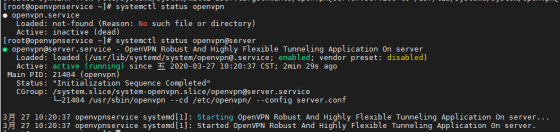
systemctl start openvpn@server  # 启动
systemctl enable openvpn@server # 开机自启动
systemctl status openvpn@server # 查看服务状态

Thoughts

8、添加客户端用户

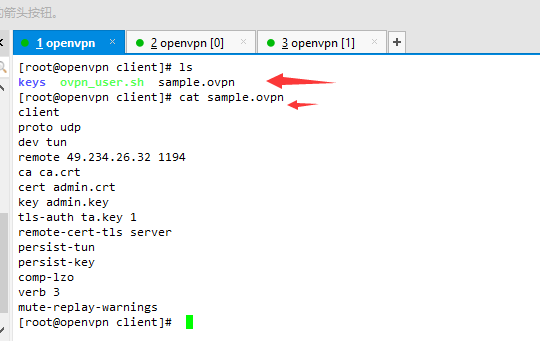
创建模版配置文件

1
2
3
4
5
6
7
8
9
10
11
12
13
14
15
16
17
[root@openvpnservice ~]# cd /etc/openvpn/client/
[root@openvpnservice client]# touch sample.ovpn
[root@openvpnservice client]# vim sample.ovpn
client
proto udp
dev tun
remote 49.234.26.32 1194
ca ca.crt
cert admin.crt
key admin.key
tls-auth ta.key 1
remote-cert-tls server
persist-tun
persist-key
comp-lzo
verb 3
mute-replay-warnings

Thoughts

创建用户脚本(为了创建用户更方便)

1
2
3
4
5
6
7
8
9
10
11
12
13
14
15
16
17
18
19
20
21
22
23
24
25
26
27
28
# ! /bin/bash
set -e
OVPN_USER_KEYS_DIR=/etc/openvpn/client/keys
EASY_RSA_VERSION=3
EASY_RSA_DIR=/etc/openvpn/easy-rsa/
PKI_DIR=$EASY_RSA_DIR/$EASY_RSA_VERSION/pki
for user in "$@"
do
if [ -d "$OVPN_USER_KEYS_DIR/$user" ]; then
rm -rf $OVPN_USER_KEYS_DIR/$user
rm -rf $PKI_DIR/reqs/$user.req
sed -i '/'"$user"'/d' $PKI_DIR/index.txt
fi
cd $EASY_RSA_DIR/$EASY_RSA_VERSION
# 生成客户端 ssl 证书文件
./easyrsa build-client-full $user nopass
# 整理下生成的文件
mkdir -p $OVPN_USER_KEYS_DIR/$user
cp $PKI_DIR/ca.crt $OVPN_USER_KEYS_DIR/$user/ # CA 根证书
cp $PKI_DIR/issued/$user.crt $OVPN_USER_KEYS_DIR/$user/ # 客户端证书
cp $PKI_DIR/private/$user.key $OVPN_USER_KEYS_DIR/$user/ # 客户端证书密钥
cp /etc/openvpn/client/sample.ovpn $OVPN_USER_KEYS_DIR/$user/$user.ovpn # 客户端配置文件
sed -i 's/admin/'"$user"'/g' $OVPN_USER_KEYS_DIR/$user/$user.ovpn
cp /etc/openvpn/server/certs/ta.key $OVPN_USER_KEYS_DIR/$user/ta.key # auth-tls 文件
cd $OVPN_USER_KEYS_DIR
zip -r $user.zip $user
done
exit 0

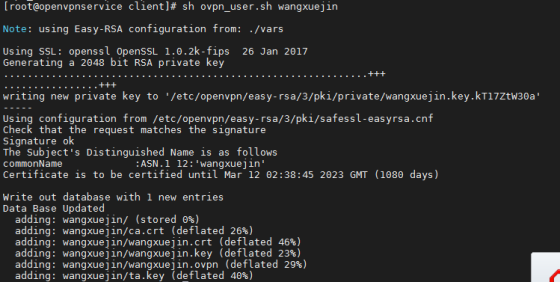
创建用户执行脚本,后面跟用户名字,执行成功后会生成证书文件

1
[root@openvpnservice client]# sh ovpn_user.sh wangxuejin

Thoughts

导出压缩包解压后放到客户端目录中即可

9、核心交换机添加路由

1
[YCZB_CS6520]ip route-static 10.10.0.0 255.255.255.0 172.18.1.182

备注:外网防火墙需要映射UDP 1194端口